Unsure How to Shoot the Scene? Try a Local Blender Previz First
Use simple Blender figures to explore framing, movement, and cuts before deciding whether to send the previz to a video model. You do not need a finished animation to understand the shot.
“Follow the character down, like an anime shot” can describe several different pictures. The camera may look up from below, descend with the character, or stay high while she falls farther away.
If camera design is unfamiliar, choosing between those pictures in words can be difficult. Build a local Blender previz instead: place a camera and a simple figure in the scene, play it, and see whether it matches what you imagined.
Previz first helps us make a decision. We can then decide whether to use it as a generation reference. Those are separate jobs; not every experiment needs to become a formal input for the video model.
Decide what the audience should notice before choosing the movement
A jump can emphasize height, speed, excitement, or an unexpected landing. Different purposes call for different camera choices.
For Heist’s leap, we wanted the character to enjoy an action she initiated. We had looked at an animated falling sequence, but a deliberate jump and an accidental drop have different body dynamics. Copying the reference movement directly would change the meaning of the scene. We needed to preserve the following-camera feeling while redesigning the jump trajectory and expression.
Before building anything, write one sentence: “This moment should make the audience feel ___.” Add what the character does and which part of the action the camera needs to show. That gives a local assistant more to work with than “make it feel like anime.”
Use a few simple objects to compare two ways of filming it
Ask an assistant that can operate Blender to use planes for the ground, boxes for obstacles, and round-headed cylinders for characters. Leave the finished character and material work for later.
If you are unsure whether the camera should descend or remain high, compare only that difference while keeping the same character path:
Make two simple previews using the same jump trajectory.
In the first, put the camera in front of and below the character.
Descend with her while keeping a chest-up view.
In the second, keep the camera high as the character falls away,
then tilt down toward the landing point.
Use a simple figure and the existing scene. Do not animate the face,
fingers, or clothing.
Export the opening, middle, and final views, plus each video at normal
speed, so we can compare facial readability and the sense of space.
This instruction is for exploring camera choices. After watching, choose the approach that serves the story, then adjust distance and cuts. Do not leave two contradictory camera directions in the final generation prompt.
Watch when the camera catches up, not only how the character moves
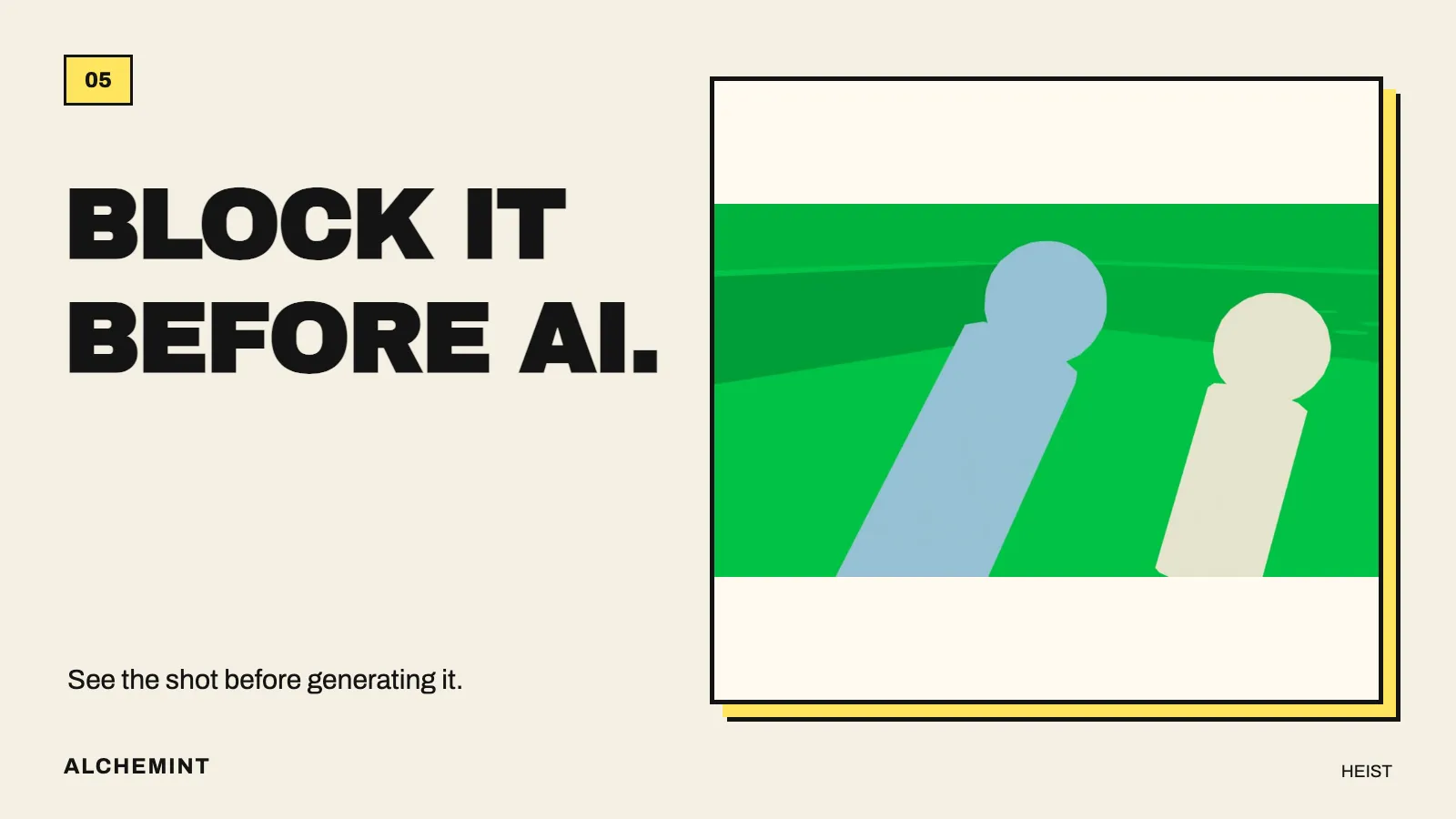
A cylinder blockout with an orbiting camera. Even without finished characters, we can inspect the close rear opening, occlusion, and changing camera distance.
Camera speed changes the rhythm of an action. If the character moves toward the edge of frame before the camera catches up, the shot feels like a pursuit. Keeping the character locked in the center throughout creates a different effect.
Inspect three moments: what the audience sees at the start, whether the essential action is obscured in the middle, and whether the end can connect to the next shot. Then watch the whole preview to check whether a cut happens before the action we need to see.
If the opening runway is so short that the character immediately reaches the jump point, move the start or rethink the timing. Update any still reference too. A still and a previz that imply different distances leave the model with conflicting instructions.
Only put reliable movement into the previz
More detail does not necessarily make a better submission reference. If the rough figure has twisted arms or an incorrect grip, the video model may inherit that pose.
When discussing the sword draw, we limited the rough model to position, airborne timing, and the camera. Grip, thumb position, and scabbard contact were described through pose images and text. We needed to solve camera work and blocking; we did not yet have reliable hand animation worth asking the model to follow.
| What needs clarification? | Start with this level | When should you add detail? |
|---|---|---|
| Two characters’ positions and directions | A static blockout or top view | When their relative positions must change over time |
| Camera path and movement order | Cylinder animation | When contact and weight change how the action reads |
| Takeoff, landing, and center of mass | A jointed human figure | When those poses have been checked themselves |
| Fingers and prop grips | A close pose reference | When a necessary continuous action cannot be explained by a still |
| How a smile develops | Expression images with timing in text | When the continuous facial movement requires closer control |
Use the table to decide how much preparation the shot needs. It does not require every shot to reach the most detailed level. A grip that a single pose image explains may not need finger animation.
Decide whether the previz is for you or for the model
After watching the previz, we may be able to describe the opening, movement, and ending clearly enough to generate from images and text. If the shot depends heavily on a particular path, speed, or sequence of cuts, supplying the previz may be useful.
Before submitting it, check that it agrees with the character and pose references. State its role: use the video for camera movement and blocking, the character sheet for appearance, and the pose image for the rifle grip.
A clock-tower shooting previz. Simple figures establish positions, a rightward pan, and the timing of the cut.
A generated result combining character, pose, and prop images with previz. Camera movement and hand contacts can be inspected separately, giving each type of error a different place to fix.
Before generating, we should be able to answer: did we choose this camera position? Can we see the essential action? Do the start and end connect to the environment? If those answers remain unclear, move the camera or adjust the blocking locally first. If the missing part is simply the finished character’s appearance, that can be left to generation.
For a longer example, see using Blender action references with Seedance.
Start here: how much should you prepare before generating?
Original character designs purchased from Aimikoda.