
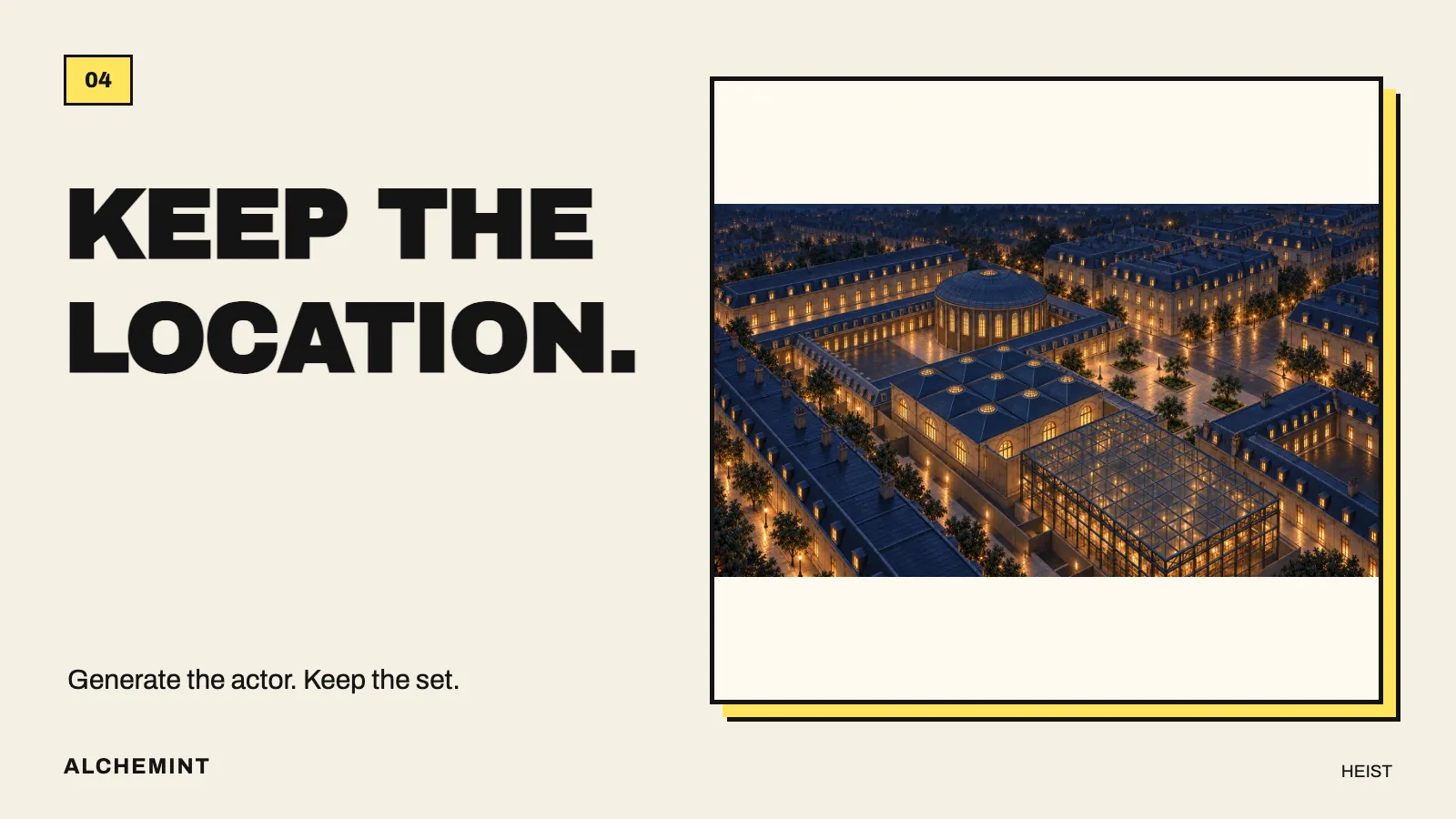
Keep the Location in Blender and Let AI Generate the Performance
When several shots need the same location, generate greenscreen characters and composite them into a fixed set. Plan camera angles, contact, and occlusion before generating.
The performance works, but the background has moved. A dome that was on the left in the previous shot now has a different shape. For a standalone clip, that may be acceptable. When a character must step on the same edge and pass through the same opening, the shots become difficult to connect.
One option is to change the division of work: let the video model generate the performance, keep the location in Blender, and composite and edit them together. Continuity comes from reusing the same environment rather than asking the model to reconstruct it each time.
Decide what you need to keep under your control
Heist’s rooftop action depends on a particular cause and effect. WHITE has cut the dome lid loose, but it remains in place. SUSEKA taps it, the lid slides away, and she uses the contact to spring up before dropping through the opening.
We needed to keep adjusting the expression and jump while making the lid move at the moment of contact. Separating character and roof let us use a generated greenscreen performance while handling the lid, opening, and background in Blender. We could work on the contact timing and edit without generating the whole roof again.
For your own shot, begin with two columns:
| Give to video generation | Keep in the environment and post-production |
|---|---|
| Character identity, expression, and body movement | Approved building shapes and positions |
| Hair and clothing responding to movement | Support surfaces and occlusion around floors, steps, and openings |
| Required reactions and dialogue | Lid movement, contact shadows, and lighting integration |
Not every shot should use this split. If a character and object intertwine with complex occlusion, compositing may demand more work than full-scene generation. Check whether you can combine the elements before choosing greenscreen.
Find the contact point in the scene before generating
Place the camera in Blender first. Decide where the character enters, where the foot touches, and where the action ends. Substitute a simple figure and inspect it from the angle you intend to use.
“Step on the center” and “tap the outer edge” are different actions. The former can look like standing on a raised block; the latter can read as pushing a lid aside. If you want the second, the generated foot pose and movement must fit that background edge.
A local AI assistant can help operate Blender, but the instruction needs to be specific:
Use the approved rooftop scene. Mark the start, contact point,
and descent position with a simple figure.
First show a side view of the sole meeting the outer edge of the lid.
Then show a top view to check whether the figure can enter the opening.
Keep the original scene and make a working copy for adjustments.
Show these two views for review before adding clothes, expressions,
or environmental decoration.
The result does not need to look finished yet. You need to know that this angle shows where the foot lands and can connect to the next shot.
If you need a spatial reference, retain the shapes and remove the architecture’s appearance
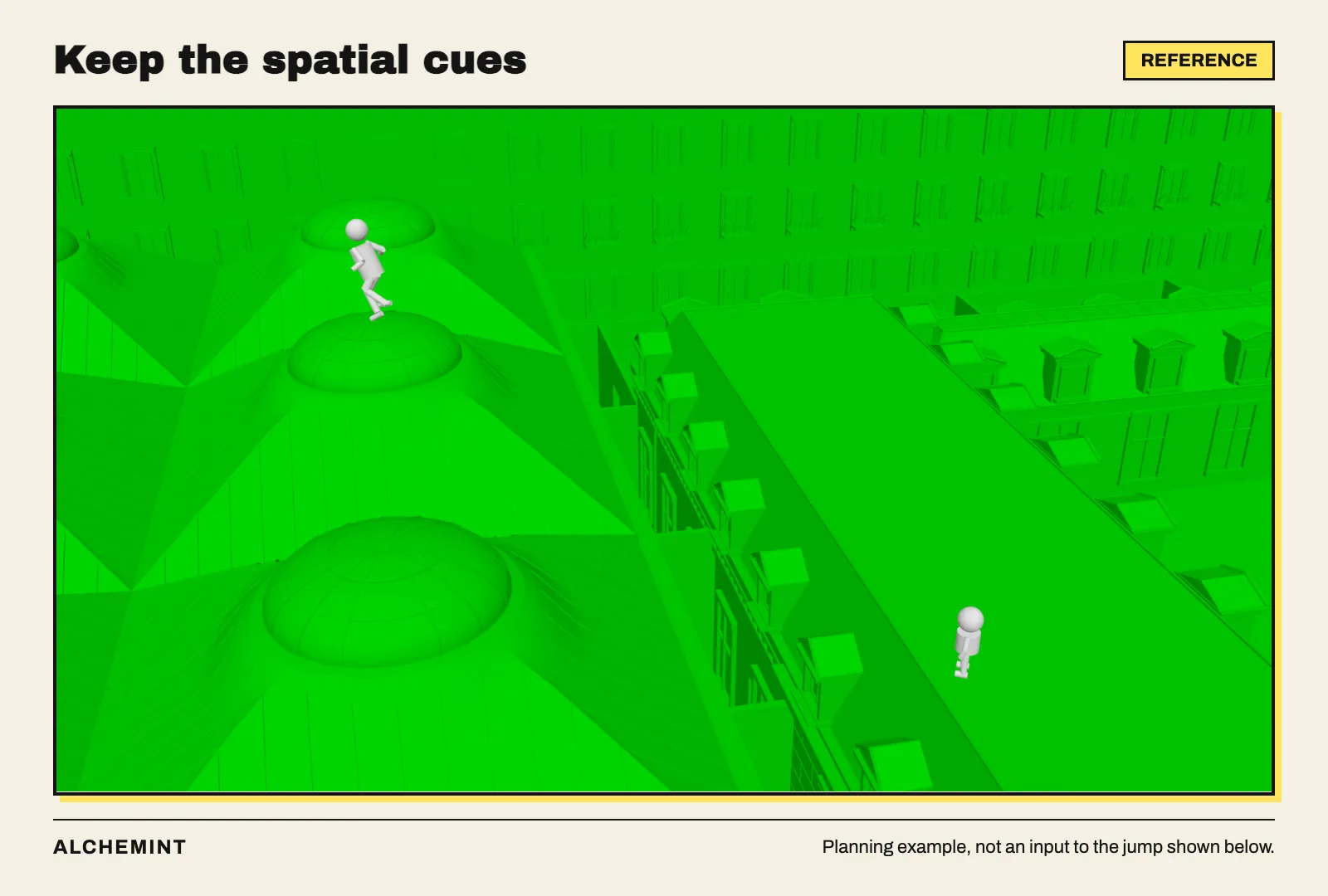
A greenscreen spatial-planning example. The roof and dome remain readable, with simple figures marking positions. This image was not used for the revised jump performance shown below.
If the model needs help understanding height differences and positions, export a simplified reference from a scene copy. Keep support surfaces, edges, and gaps; remove window frames, textures, and ornament. A reference that still shows detailed architecture may encourage the model to generate it into the character clip, adding work during keying.
More references are not always more useful. If the action now touches an outer edge, an older image placing the character on a central raised point should not continue guiding it. Keep that image for studying the scene, make a new one that matches the action, or submit only the character, expression, and a clear movement description.
Design the performance for compositing, not merely for a green background
This generated performance includes a green step block. Watch the shoe’s contact and departure. The block can be removed, but the foot angle and weight shift still determine whether the performance can fit the roof.
As we worked on this scene, the contact drifted toward the center and the shoe did not line up with the background edge. When revising the prompt, we focused on making the actions easier to combine with the set: a short foot-contact shot, a separate facial close-up, and a descent beginning from a clear overhead view.
You can use the same reasoning. Simplify the camera where precise contact matters, so the angle remains readable. Place more elaborate camera movement in sections that do not also require a foot to align with a surface. This is one way to reduce integration difficulty, not a rule that every action shot must use a fixed camera.
Generate the character performance against a clean green background.
Use a brief fixed shot for foot contact, showing the full sole as it
meets the surface, takes weight, and leaves.
Use a separate close-up for the expression. Begin the descent from
an overhead view.
Leave the roof, lid, contact shadows, and architectural reflections
to post-production.
Allow short lead-ins and follow-through for editing, rather than
packing every moment with a new action.
Adapt this working example to your own shot. How long to hold an expression or pause in the action still depends on the scene’s rhythm.
After keying, three kinds of integration remain
The revised greenscreen performance.
A composite using the Blender roof. This version is edited and cropped; watch the clips separately.
First is space: does the sole touch the surface, and does the opening’s edge correctly obscure the character as she passes through? Second is light: the actor should not look like a brighter piece of paper pasted over a night scene. Third is time: the foot touches, then the lid moves. The cuts between action and reaction must make that cause and effect readable.
Greenscreen preserves control over the location. It does not automatically solve these three problems. If the generated figure has an incompatible viewpoint, moving or scaling it may not rescue the shot. That is why the background, camera angle, contact, and post-production responsibilities are worth deciding before submission.
Start here: how much should you prepare before generating?
Original character designs purchased from Aimikoda.